Step By Step Instructions with pictures to configure Aircord WiFi Router to any internet Device like PTCL Dsl line or any other device like Wateen and Qubee
Step 1:
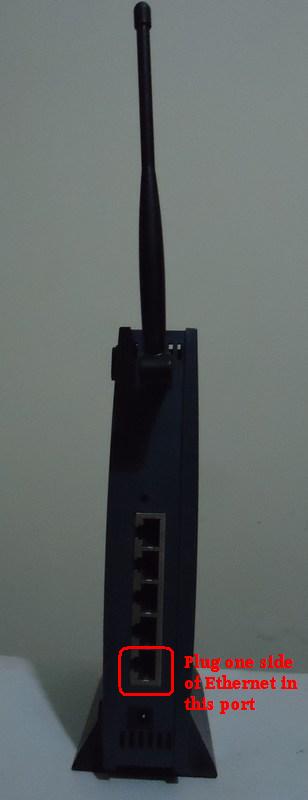
Turn ON you computer and WiFi router, Plug One side of your Ethernet cable in the port shown in picture and plug other side directly to your computer LAN card.
Step 2:
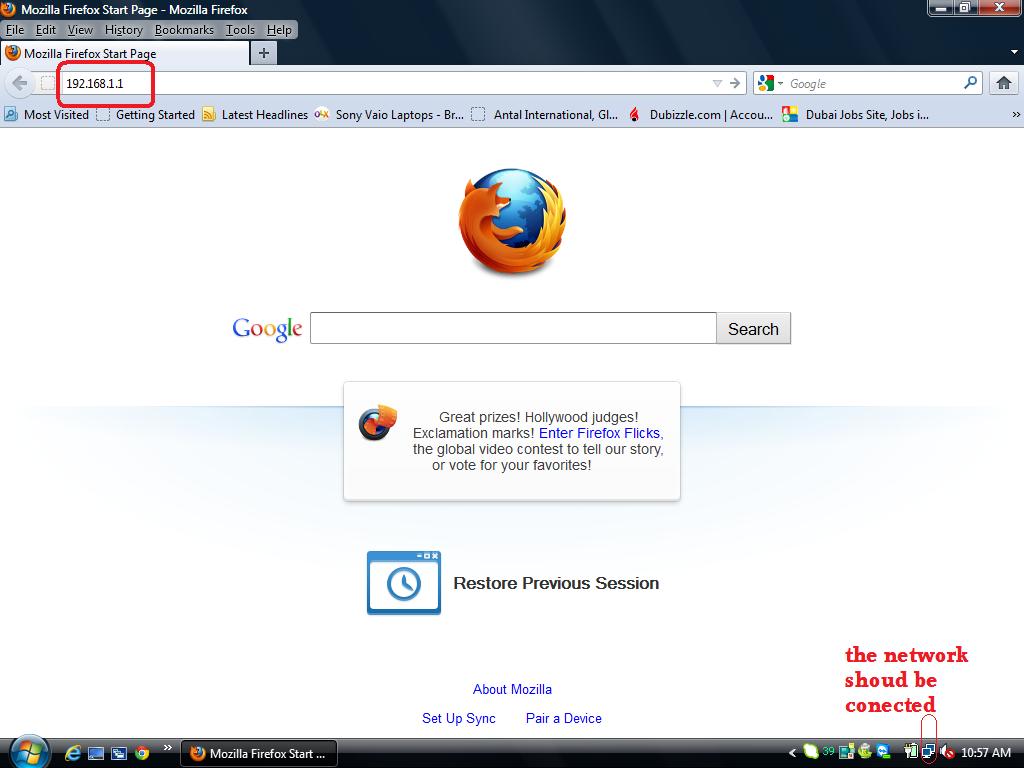
Now Open your web Browser (Firefox/Google Crom/ Internet Explorer) and enter 192.168.1.1 in the address field
Note: Your Network Should be Connected like shown in picture.
Step 3:
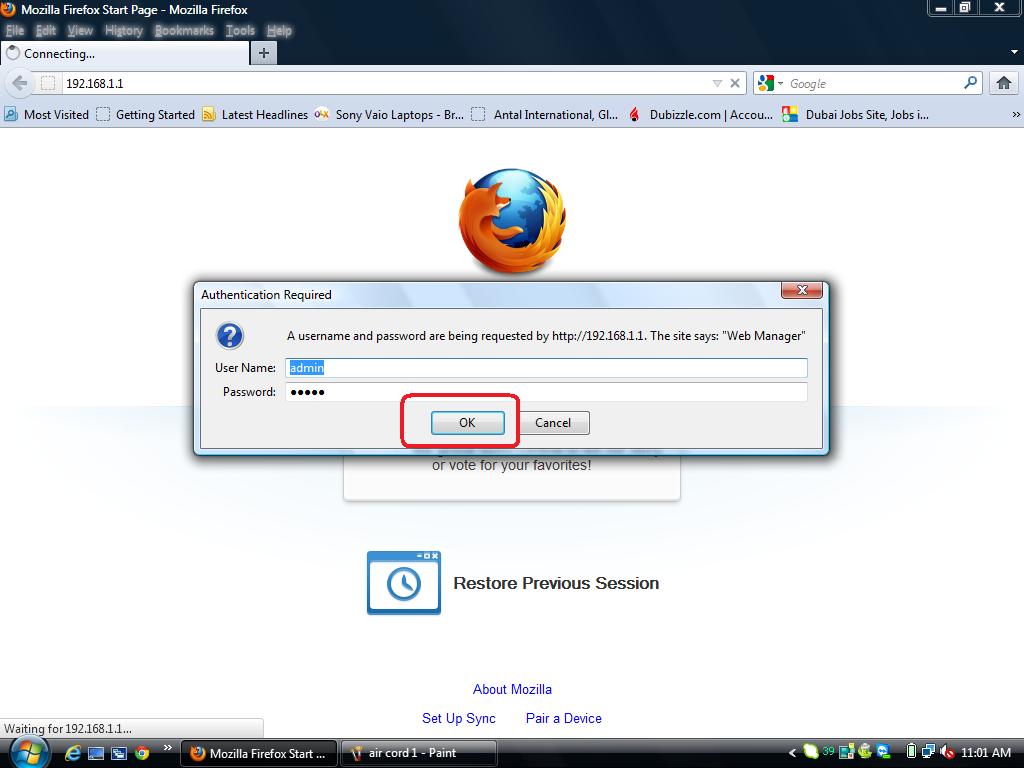
Enter admin as username and admin as password and press ok
Step 4:
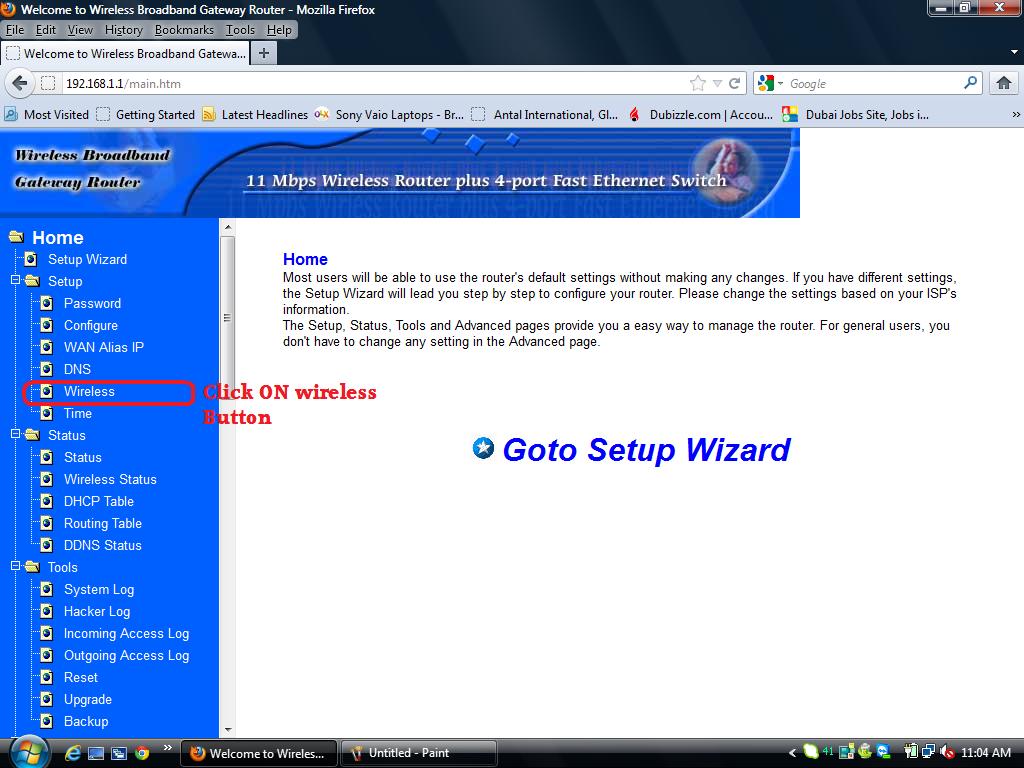
You are now in router's control panel click on wireless link witch is the sub-menu of the setup menu
Step 5:
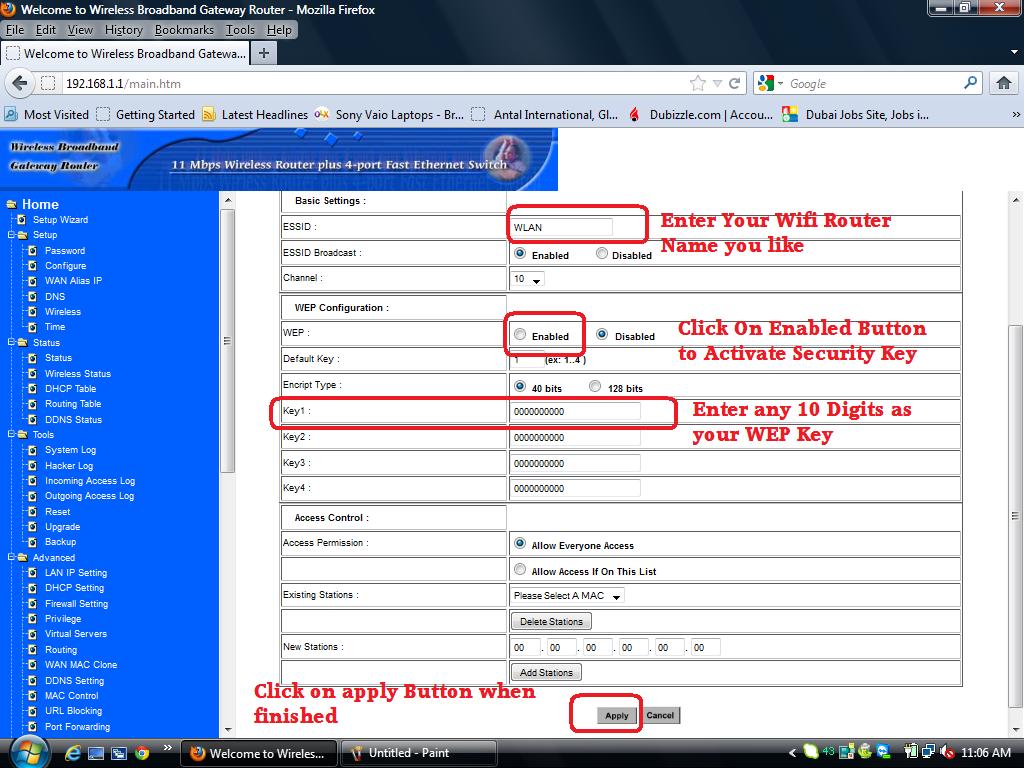
Now enter Your WiFi name if you want to change the default name, if You want to use a security key then select Enabled Button now enter 10 digits key in key 1 field for example(12345678ab) now click on apply button
Step 6:
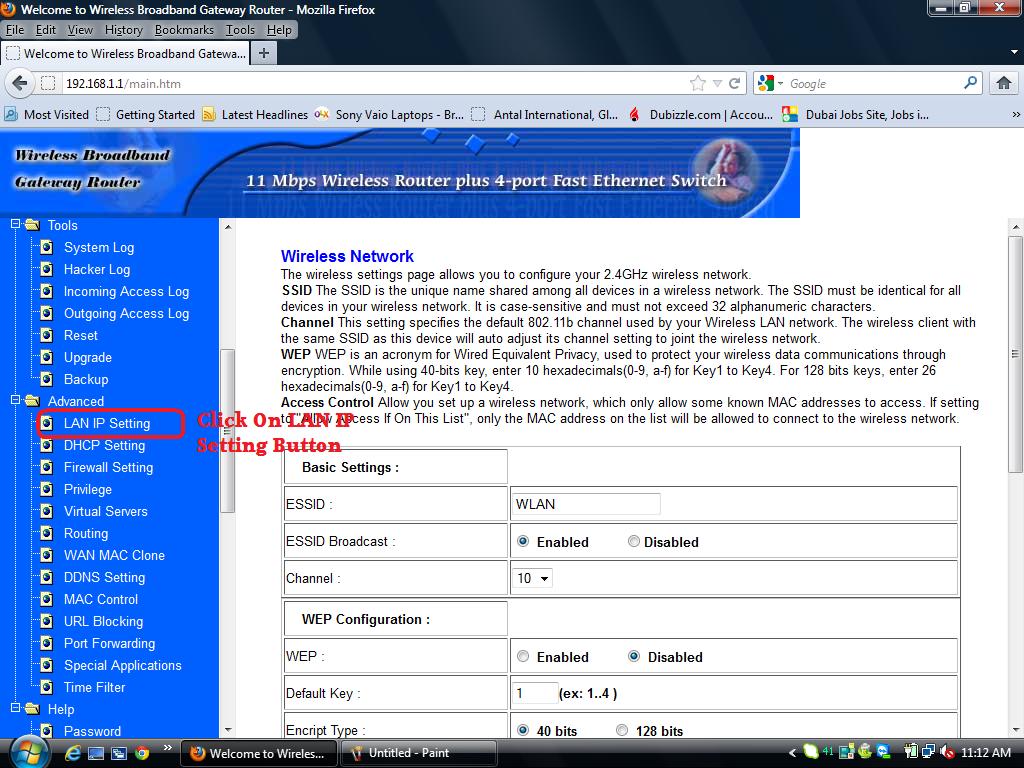
Now Scroll down the page and click on link LAN IP Setting witch is the sub-menu of the Advance menu
Step 7:
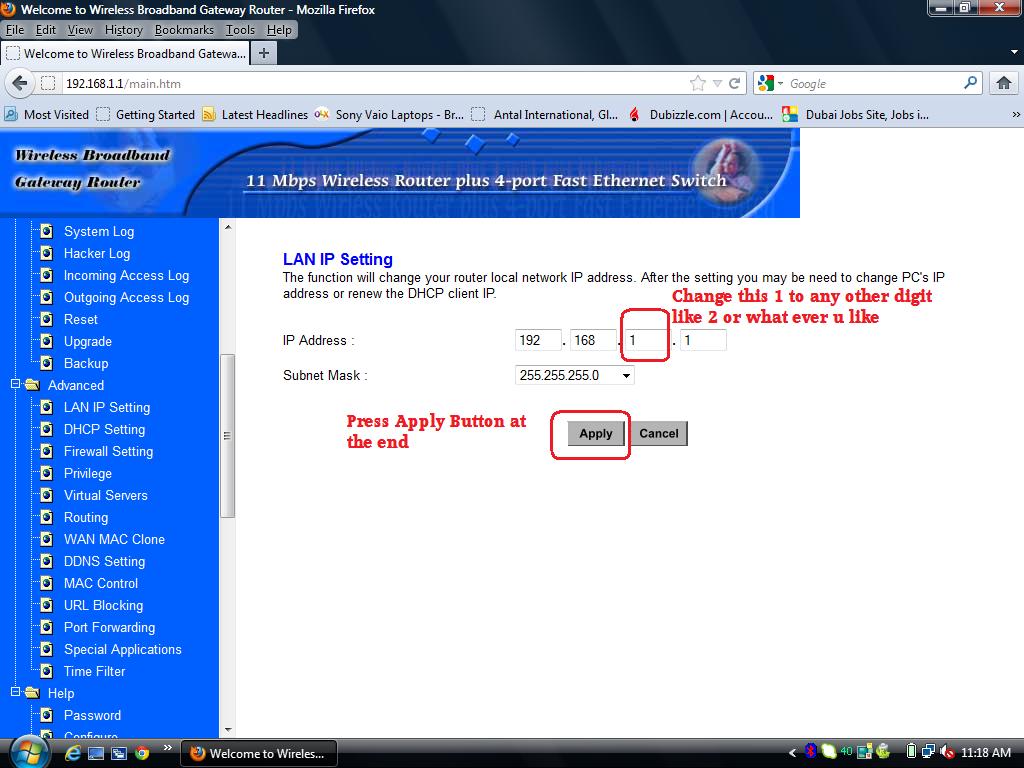
Now change the 1 to any digit ( 2 to 9) you ip should be like this 192.168.5.1
Step 8:
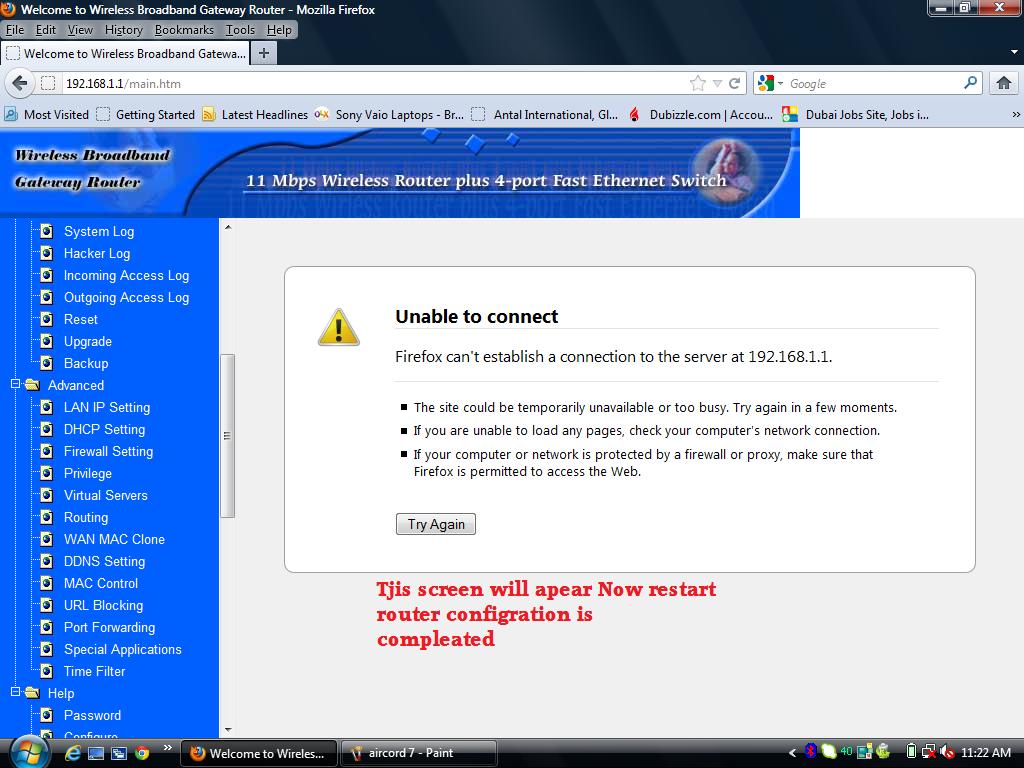
Now unplug Ethernet cable and restart you WiFi router and your computer, after restart plug you internet cable into internet port of AirCord WiFi router and enjoy...
For more help please feel free to Contact 03226200621
